Basic Information – Homepage
Step 1 wizard
- Module Management from Homepage
- Adding a Module
- Managing Existing Modules
- Modifying Existing Configurations
Module Management from Homepage
The Homepage serves as the primary control center for managing all CSV export configurations. This interface provides a comprehensive overview of all configured modules and delivers immediate access to the plugin's core functionality.
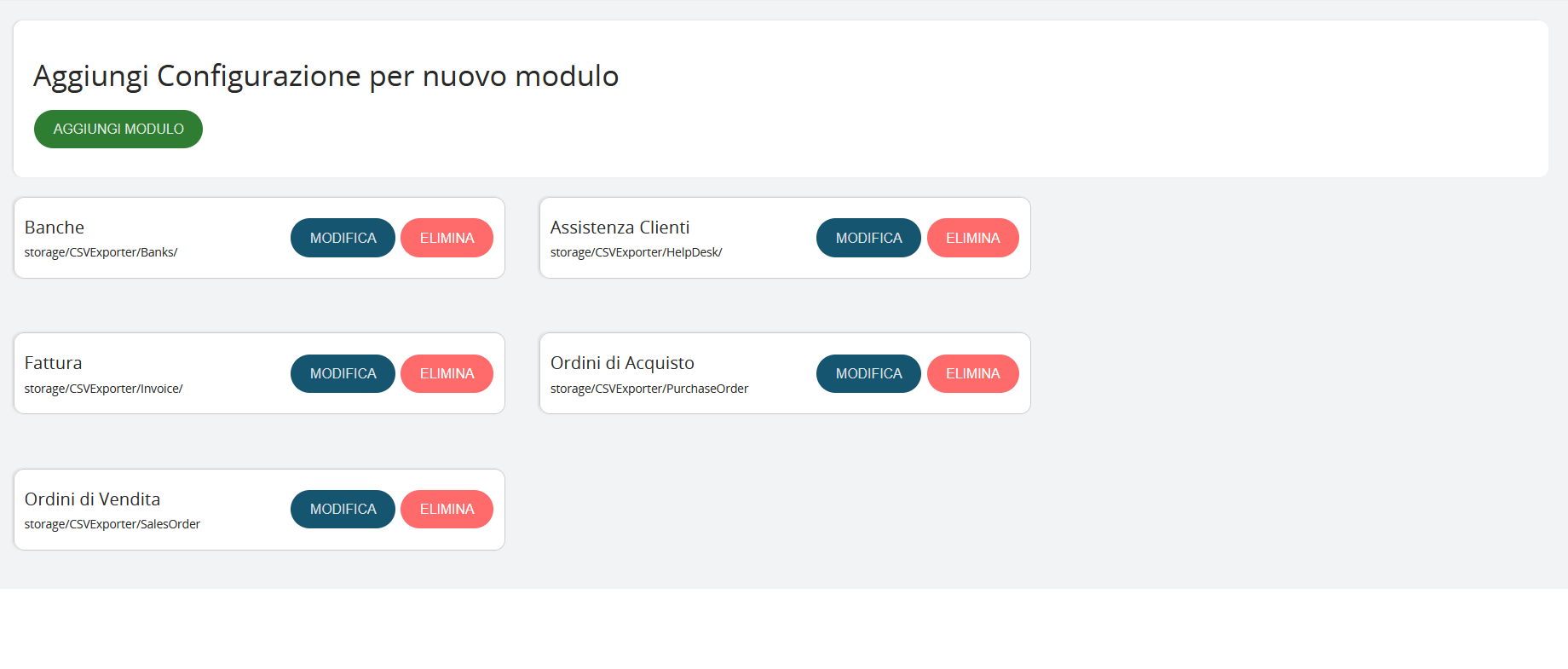
Configured Module Display
The homepage displays all previously configured export modules, organized in information cards that show:
- Module name (e.g., Banks, Customer Support, Invoice)
- Storage path (e.g., storage/CSVExporter/Banks/)
- Available actions for each module
Important: Changes are permanently applied only after completing the entire wizard process and clicking "SAVE" in the final step. Until that point, all modifications can be canceled without affecting the existing configuration.
Adding a Module
Creating New Configurations
To create a new export configuration, the homepage provides the "ADD MODULE" button:

- Click the green "ADD MODULE" button
- The system automatically opens the 5-step configuration wizard
- The wizard guides you through all configuration aspects:
- CRM module selection for export
- Field definition for inclusion
- Format and separator configuration
- Filter setup and advanced options
- Configuration save for future use
Managing Existing Modules
Two main actions are available for each configured module:
- "Edit" button: provides access to the configuration wizard to modify the existing configuration. This function allows you to:
- Update fields to be exported
- Modify filters and selection criteria
- Change formatting options
- Adjust the module's export logic
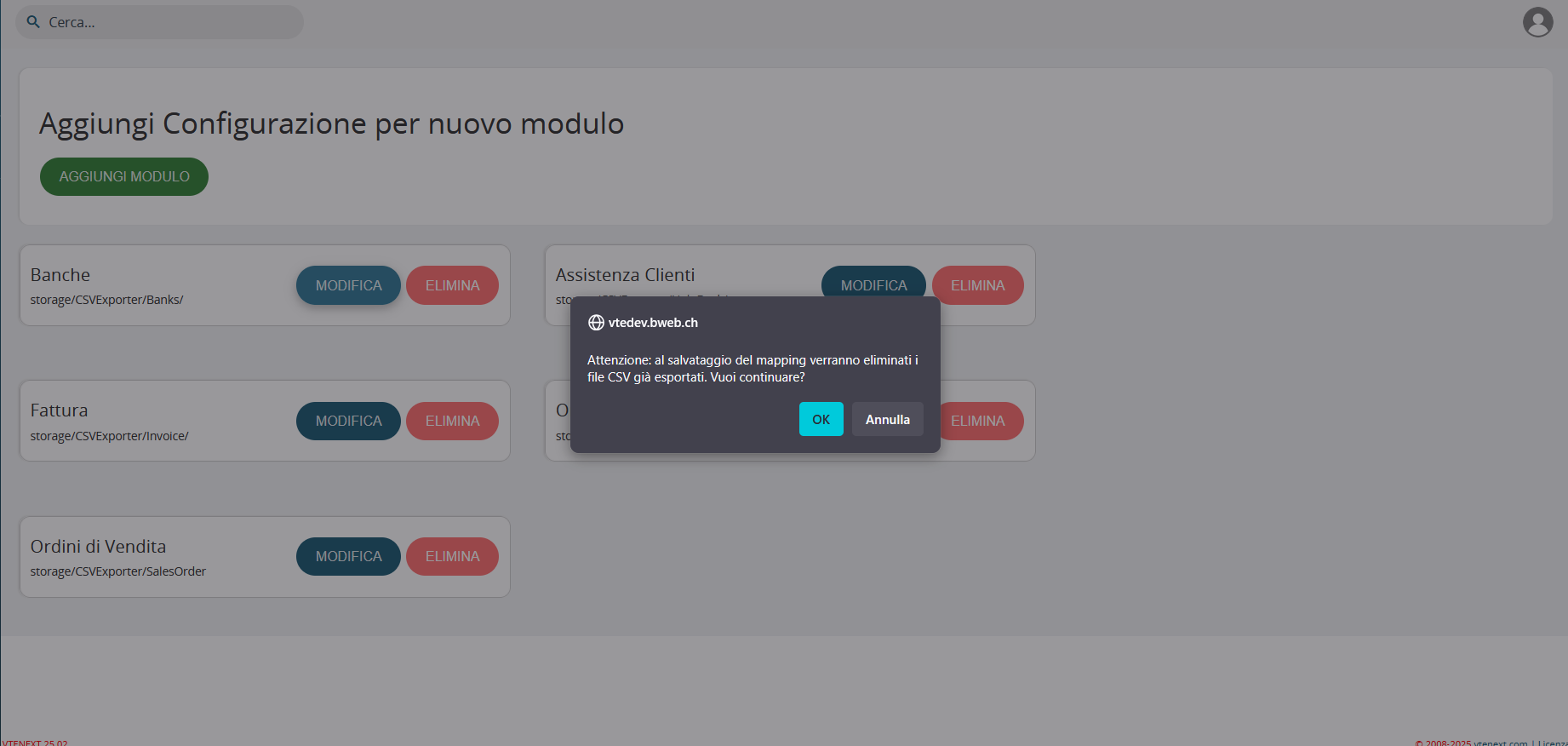
- "DELETE" button: permanently removes the selected configuration. To ensure data security, the system implements a confirmation procedure that:
- Displays a warning message before deletion
- Requires explicit user confirmation

Modifying Existing Configurations
Modifying Existing Configurations
To modify an already created configuration, the process is equally intuitive:
Modification Procedure:
- Locate the module to be modified in the homepage list
- Click the "EDIT" button corresponding to the desired module
- The system will automatically load the current configuration into the wizard
- The wizard allows you to modify all configuration aspects:
- Add or remove fields from the export
- Change separators, date formats, and numeric options
- Modify file name, description, or destination folder
- Adjust filters and selection criteria