Field Mapping
Step 3 Wizard
Mapping - Introduction
The third step defines the correspondence between VTE module fields and the columns that will appear in the final CSV file. This phase is crucial for determining which information will be exported and how it will be structured.
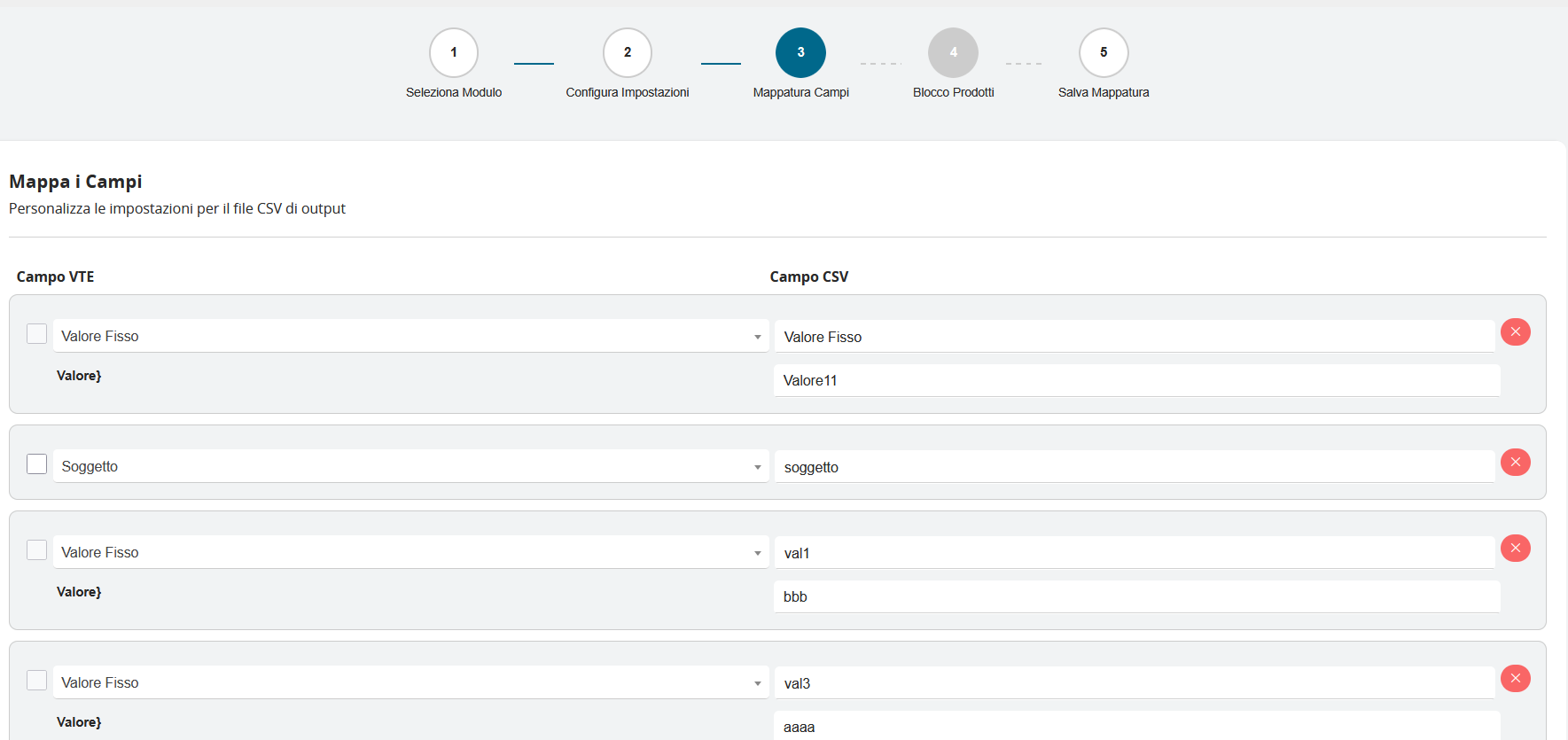
The mapping interface is organized into two main columns that work together in a coordinated manner:
Left Column - VTE Field This section displays the available fields in the selected module, with specific characteristics:
- Selection checkbox: Allows including or excluding each field from the export
- Field name: Descriptive label of the field in the VTE system
- Field type: Automatic identification between dynamic fields and fixed values
Right Column - CSV Field This section defines how fields will appear in the output file:
- Column name: Label that will appear as header in the CSV
- Editable field: Ability to fully customize the column name
- Removal control: X button to delete individual mappings
Mapping Types
The system supports different mapping types to adapt to specific needs:
Dynamic Fields Dynamic fields represent real data extracted from the database:
- Example: "Subject" → "subject"
- Function: Transfers the actual field value from the VTE record
- Customization: The CSV column name can be modified while maintaining the data link
Fixed Values Fixed values allow inserting static information in every row:
- Example: "Value}" → "Value11"
- Function: Inserts the same predefined value in all exported rows
- Usage: Ideal for identifiers, categories, or common metadata
Mapping Management
Field mapping is handled through:
Field Selection:
- Active checkbox: Field is included in the export
- Inactive checkbox: Field is excluded from the export
- Granular control: Ability to select only necessary fields
Column Name Customization
- Direct editing: Click on the field to edit the CSV column name
- Conventions: Ability to adopt specific naming standards
- Clarity: Use of descriptive names to facilitate data interpretation
Mapping Removal
- Red X button: Completely removes the mapping
- Immediate action: Instant removal without confirmation
- Flexibility: Ability to reorganize the field list
Practical Mapping Examples
Scenario 1 - Contact Export
- VTE Field: "Company Name" → CSV Field: "company_name"
- VTE Field: "Primary Email" → CSV Field: "email"
- Fixed Value: "Type" → CSV Field: "customer_type" (value: "Customer")
Tip: Start with essential mapping including only indispensable fields, then gradually expand by adding additional fields based on specific project requirements.
Dynamic Mapping Field Management
The system offers the ability to dynamically expand the configuration through the "+ ADD FIELD" button, which represents a fundamental tool for advanced export customization. When this button is clicked, the system immediately adds a new blank mapping row at the end of the existing list, allowing inclusion of additional fields that may not have been considered in the initial configuration.
