# 2. Migration from 20.04.xx to 24.08 or 26.04
Special migration procedure from the legacy 20.04 structure to the new vtenext module structure, plus the standard upgrade from 24.08 to 26.04.
# Before Migrating from 20.04.xx
Migrating from any version in the **20.04.xx** family is a special step because Exchange Connector moves from the legacy dedicated installation to the new vtenext module/extension structure.
## Migration paths
- **20.04.xx → 24.08**;
- **20.04.xx → 26.04**.
In both cases, the Exchange module registration step must be performed once. If Exchange Connector is already on version 24.08, use the standard upgrade procedure described in [Upgrading from 24.08 to 26.04](https://manual.vtenext.ch/books/exchange-connector-vtenext-Hfx/page/upgrading-from-2408-to-2604).
## Before you begin
Create a full backup of the vtenext instance and record the current Exchange configuration. Check at least:
- current connector version;
- Exchange type in use;
- enabled synchronization modules;
- users using the connector;
- folders selected by users;
- custom mappings for Contacts and Organizations;
- any existing synchronization errors.
## Why the registration script is required
The script registers the existing Exchange Connector as a vtenext vtlib module. It does not reinstall the connector and must be run **only once** on an instance coming from the 20.04.xx family.
The full operational procedure is described in [Migrating from 20.04.xx to 24.08 or 26.04](https://manual.vtenext.ch/books/exchange-connector-vtenext-Hfx/page/migrating-from-2004xx-to-2408-or-2604).
## If Microsoft 365 is used
The new generation uses Microsoft Graph for Exchange Online. Before migration, decide whether to use the **vtenext Proxy** or a **Custom Microsoft App**. Differences, requirements and configuration are described in [Configuring Microsoft 365](https://manual.vtenext.ch/books/exchange-connector-vtenext-Hfx/page/configuring-microsoft-365).
## If Exchange Server is used
For on-premises Exchange Server, the module structure still has to be migrated, while communication continues to use EWS. See [Configuring Exchange Server](https://manual.vtenext.ch/books/exchange-connector-vtenext-Hfx/page/configuring-exchange-server).
# Migrating from 20.04.xx to 24.08 or 26.04
Moving from 20.04.xx to 24.08 or 26.04 requires a special procedure because Exchange Connector must be converted from the legacy installation into a registered vtenext module.
## 1. Back up the instance
**Warning**
Before starting, create a full backup of the vtenext database and files and record users, selected folders and any custom mappings.
## 2. Upgrade vtenext to the target generation
Upgrade the vtenext instance to the required target generation and use the Exchange Connector package built for the same vtenext generation.
## 3. Register Exchange Connector as a vtenext module
On installations coming from 20.04.xx, run the Exchange module registration script once:
`register_exchange_module.php`
Copy the script to `../plugins/script/` and run it through the browser, for example `https://mycrm.example/plugins/script/register_exchange_module.php`.
**Critical operation**
Remove `register_exchange_module.php` immediately after execution. The script must be run only once.
The script registers the existing connector as a vtenext vtlib module without recreating the existing Exchange tables, cron entries, settings or fields.
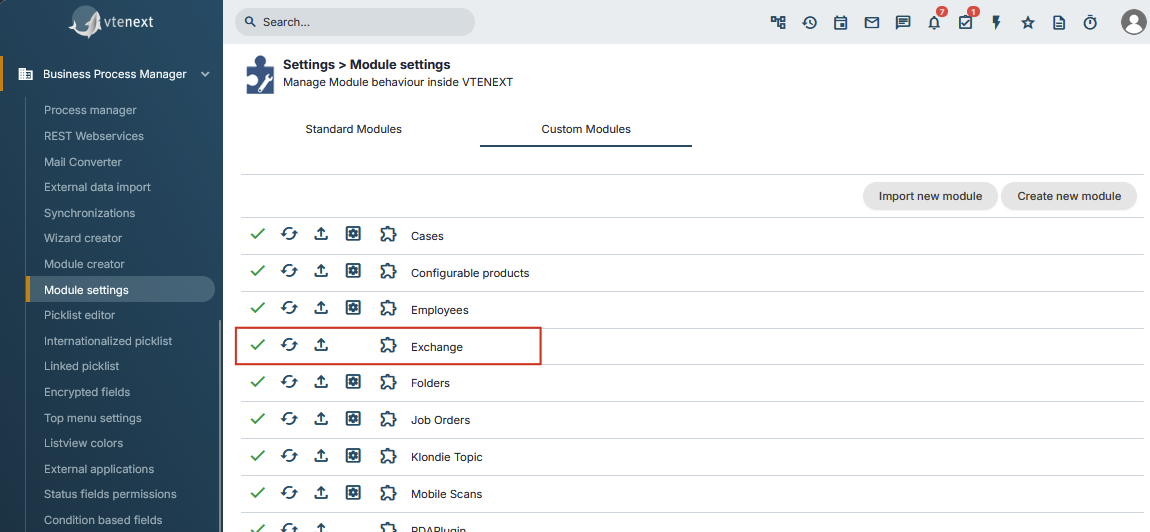
Open Module Manager, section **Custom**, and verify that Exchange Connector is listed.
[](https://manual.vtenext.ch/uploads/images/gallery/2026-09/PwpDSGkpmYUdqrFQ-immagine.png)
**Check**
If Exchange Connector appears correctly in Module Manager, module registration has completed successfully.
## 4. Upgrade the module to the target version
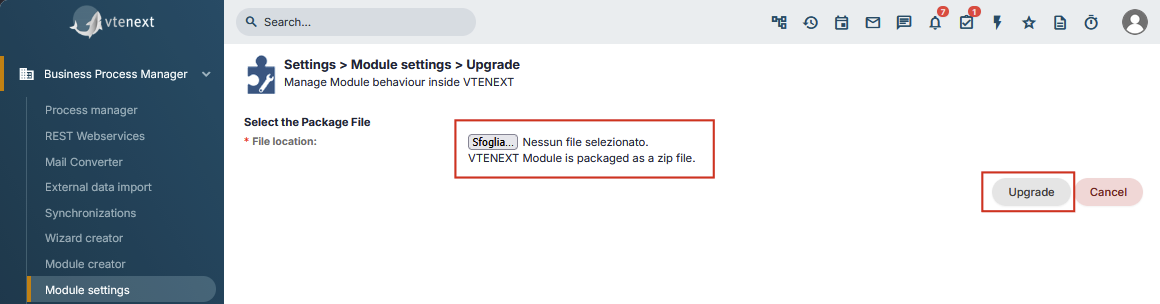
Install or upgrade Exchange Connector using the ZIP package for the target version. From this point onward, the connector is managed as a standard vtenext module.
[](https://manual.vtenext.ch/uploads/images/gallery/2026-09/RADb41uWTc1WTlpd-immagine.png)
[](https://manual.vtenext.ch/uploads/images/gallery/2026-09/wOhg3K7ns0gewS2a-immagine.png)
## 5. If Microsoft 365 is used
1. Open **Settings > Exchange Connector**.
2. Verify that the server type is **Office365**.
3. Choose **vtenext Proxy** or **Custom Microsoft App**.
4. If a custom app is used, enter its configuration again.
5. Save.
6. Check users and reconnect them with **Connect** if required.
7. Verify selected folders.
8. Run a synchronization test.
**Legacy Office365 configurations**
During migration to the new structure, Office365 is moved to the vtenext Proxy mode. If the customer wants to use a custom Microsoft App, Tenant ID, Client ID and Client Secret must be configured again after migration.
## 6. If Exchange Server is used
For on-premises Exchange Server, the structural migration is the same, while communication continues to use EWS. Check Exchange version, Mail Server, user credentials, selected folders and synchronization in both directions.
## 7. Final check
The migration is complete when the module is correctly listed in Module Manager, the expected version is installed, users and folders are correct, and synchronization tests in both directions succeed.
# Upgrading from 24.08 to 26.04
If Exchange Connector is already on version 24.08, moving to 26.04 is a standard module upgrade.
The registration script used for migrations from 20.04.xx must not be run again because the connector is already registered as a vtenext module/extension.
## Procedure
1. Create a backup of the vtenext instance.
2. Verify that Exchange Connector 24.08 is working correctly before the upgrade.
3. Use the Exchange Connector ZIP package for version 26.04.
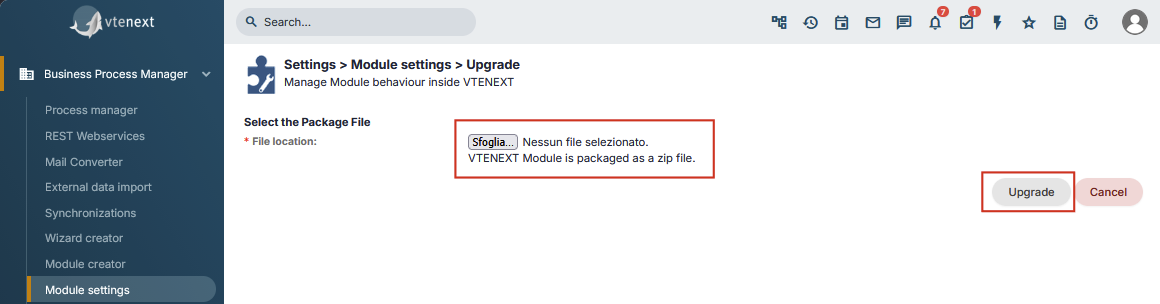
4. Run the standard module upgrade from vtenext Module Manager.
[](https://manual.vtenext.ch/uploads/images/gallery/2026-09/mOykXiHOKKsXzicQ-immagine.png)
[](https://manual.vtenext.ch/uploads/images/gallery/2026-09/UsZmIa53Y28LQxIz-immagine.png)
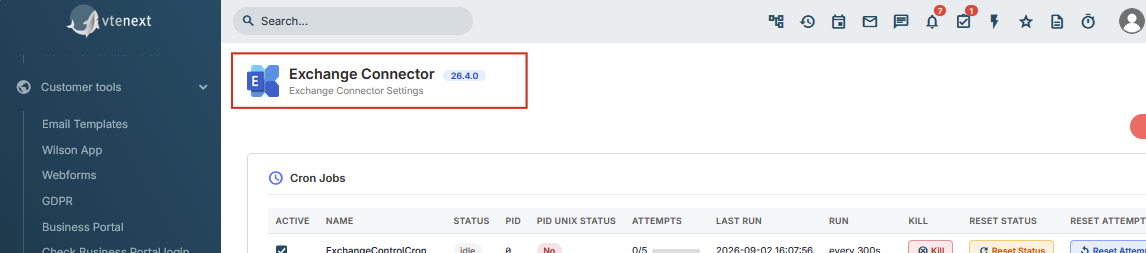
Wait for the upgrade to complete, then open **Settings > Exchange Connector** and verify the installed version.
[](https://manual.vtenext.ch/uploads/images/gallery/2026-09/P3M65eFGLdt16cNP-immagine.png)
Finally, check configuration, users, selected folders and mappings, and run a synchronization test in both directions.
## What not to do
- Do not run `register_exchange_module.php` again.
- Do not treat the connector as a legacy 20.04 installation.
- Do not reinstall the module from scratch.
- Do not delete configuration or users before the upgrade.
The registration script belongs only to the first migration from the 20.04.xx structure to the new module structure.
# Microsoft 365: Temporarily Re-enabling EWS During Migration
Microsoft is retiring EWS in **Exchange Online / Microsoft 365**. This change does not apply to Exchange Server installed on the customer infrastructure.
For this reason, when migrating from 20.04.xx to the new connector generation (**24.08 or 26.04**), Microsoft 365 must move to Microsoft Graph.
## Key dates
**From October 1, 2026**
Microsoft begins progressively blocking EWS in Exchange Online tenants that have not explicitly configured the available exception.
**From April 1, 2027: final shutdown**
EWS will be permanently disabled in Exchange Online and can no longer be re-enabled through the temporary administrative setting.
## If an EWS integration stops working during migration
During the transition period, Microsoft still allows administrators to **temporarily re-enable EWS**.
The Microsoft 365 administrator can manage the `EWSEnabled` setting and, where required, the list of authorized EWS applications.
**Temporary workaround**
Re-enabling EWS should only be used to keep the service operational while completing the migration to Microsoft Graph. It is not a permanent solution.
## Recommended approach for vtenext
If the legacy 20.04.xx connector stops communicating with Exchange Online after Microsoft blocks EWS:
1. evaluate whether EWS should be temporarily re-enabled to avoid an immediate service interruption;
2. migrate Exchange Connector from 20.04.xx to **24.08 or 26.04** using the module registration procedure;
3. configure Office365 with Microsoft Graph;
4. reconnect users if required;
5. verify synchronization;
6. remove the dependency on EWS once migration is complete.
If Exchange Connector is already on version 24.08, moving to 26.04 is a standard ZIP module upgrade and does not require the structural migration again.
## Microsoft reference
[Exchange Online EWS: Your Time Is Almost Up](https://techcommunity.microsoft.com/blog/exchange/exchange-online-ews-your-time-is-almost-up/4492361)
# Checks After Migration or Upgrade
After migrating from 20.04.xx or upgrading from 24.08 to 26.04, do not consider the work complete until configuration, users and synchronization have been verified.
## Module checks
- Exchange Connector is listed in Module Manager;
- the installed version is the expected one;
- the configured Exchange type is correct;
- the required synchronization features are enabled;
- the license is valid;
- no blocking errors are shown on the Exchange Connector page.
## User checks
For each Exchange user, verify connection status, correct account, selected folders, any Resource/Impersonation settings and absence of authentication errors. For Microsoft 365, reconnect the user if access is no longer valid.
## Mapping checks
Open **Exchange Field Mapping** and check Contacts and Organizations, especially if custom mappings were used in 20.04.xx.
## Recommended test
1. Create a test record in vtenext and verify it reaches Exchange.
2. Modify it in Exchange and verify the change returns to vtenext.
3. Test a recurring event if used.
4. Test a Contact with e-mail and phone.
5. Test a Task with status and due date.
6. Test an Organization if organization synchronization is enabled.
## When the migration can be considered complete
The process is complete when the module is registered and upgradeable, all required users are connected, two-way tests succeed without duplicates, the mapping is correct and no persistent errors remain.