4. User Configuration
User connection, Microsoft 365 authentication, Exchange credentials and folder selection.
- Connecting a Microsoft 365 User
- Configuring an Exchange Server User
- Selecting or Changing Synchronization Folders
- Resource Users and Impersonation
Connecting a Microsoft 365 User
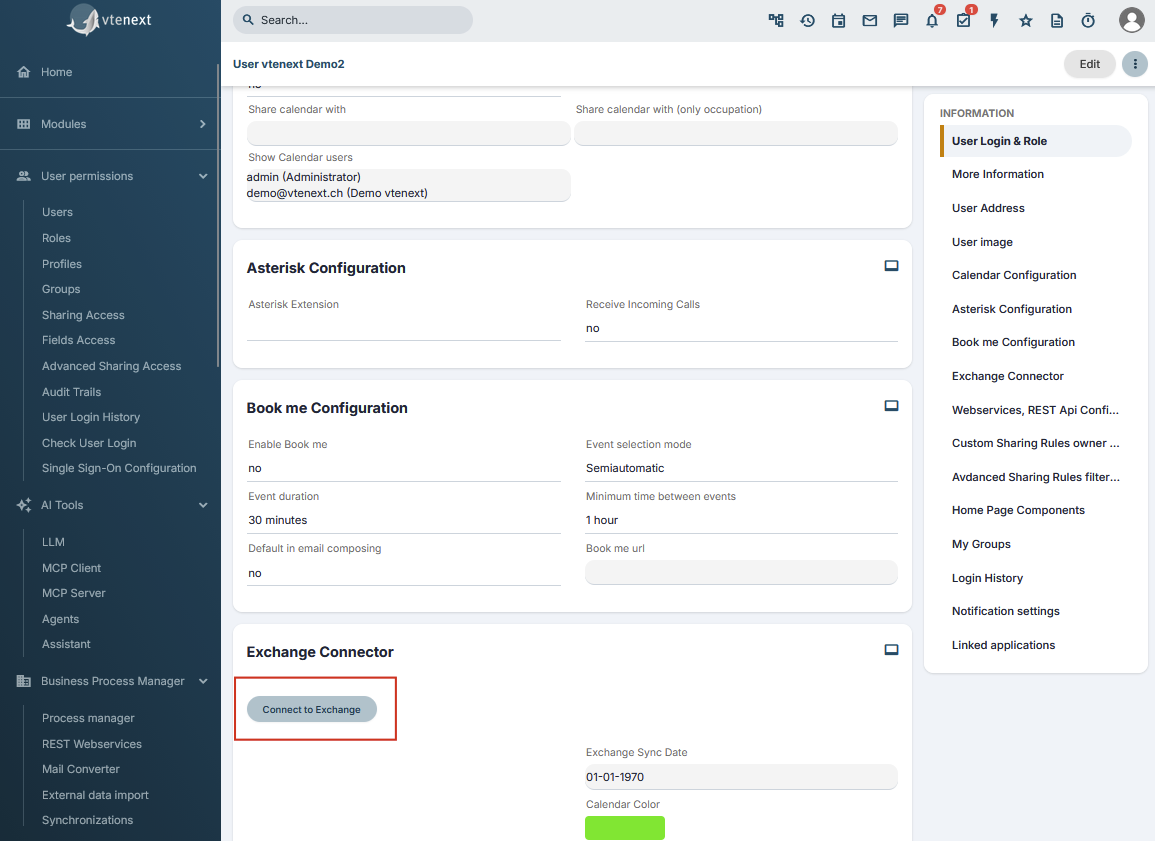
With Microsoft 365, each user connects their own account directly from the vtenext user profile.
Procedure
- Open the user profile.
- Locate the Exchange section.
- Click Connect.
- Sign in with the correct Microsoft account.
- Confirm the requested authorization.
- Return to vtenext.
- Select synchronization folders if requested.
- Save.
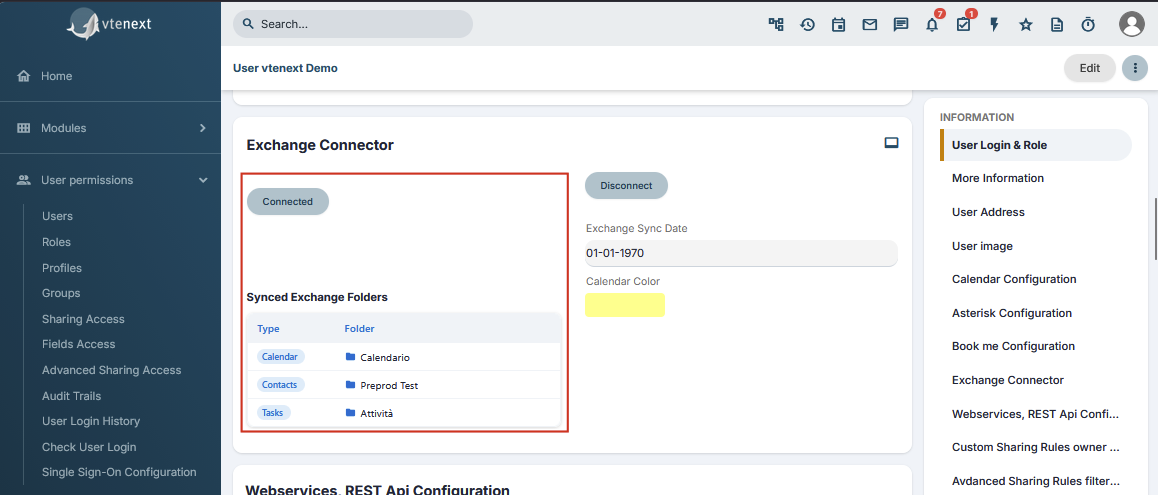
When the connection is complete and folders are configured, the profile shows Connected.
Which account to use
Unless impersonation is configured, the e-mail address in the vtenext user profile must match the Microsoft account being connected.
Do not use the same e-mail address for two different vtenext users. This can cause synchronization issues and problems when handling calendar invitations, especially with external users.
Warning when Microsoft access expires
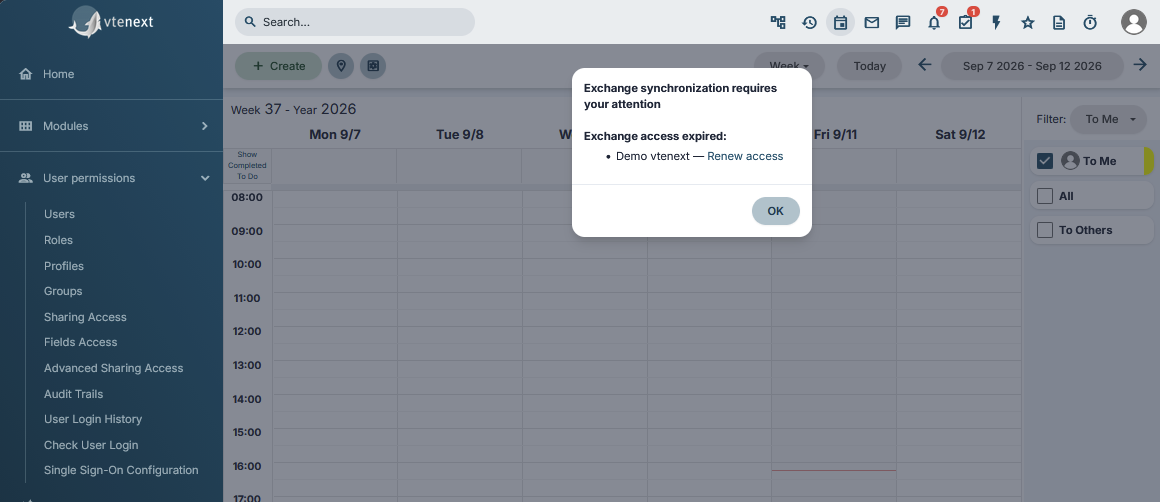
In the new Exchange Connector versions, vtenext checks Microsoft 365 authorization status. If one or more accounts are disconnected or their access has expired, a popup appears in the vtenext Calendar.
The warning lists accounts with Exchange access expired and provides a Renew access action. The user must renew the Microsoft authorization to restore normal synchronization.
- Identify the account shown as Exchange access expired.
- Click Renew access.
- Complete Microsoft sign-in and authorization again.
- Return to vtenext and verify that the warning disappears.
- Run a synchronization test if the account remained disconnected for a significant period.
If Connect or Renew access still fails
Verify that Microsoft sign-in completes all the way back to vtenext, that the vtenext session has not expired and that Office365 configuration is correct. See User Cannot Connect.
When to reconnect
Use Connect or Renew access when Microsoft authorization expires or is revoked, after an Exchange configuration reset, or when requested by support. If the Proxy/Custom App mode changes, follow Changing Exchange Type or Connection Method.
Configuring an Exchange Server User
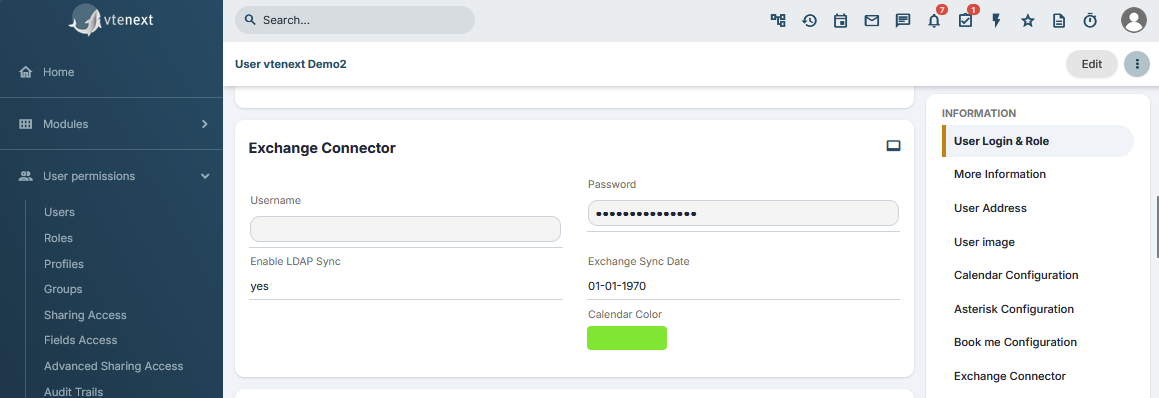
With Exchange Server, the user is configured from their vtenext profile using Exchange credentials.
Required data
Check at least:
- Exchange Username;
- Exchange Password;
- optional Exchange Sync Date;
- Exchange folders;
- Is Resource or Impersonation when actually used.
Credential test
When user preferences are saved, the connector attempts to sign in to Exchange. If the credentials are valid, the profile is saved normally; if the credentials are incorrect or another connection problem exists, vtenext reports the issue and prevents the configuration from being saved.
If the test reports an invalid username or password, correct the credentials first. Do not continue changing folders or restarting synchronization until the Exchange login works.
Folder selection
Once access has been validated, select the folders used for Calendar, Tasks and Contacts. The connector can show both default and custom mailbox folders.
After saving
- Create a test event in vtenext.
- Verify that it appears in the selected Exchange calendar.
- Modify it in Exchange.
- Verify that the change returns to vtenext.
Repeat the test for any other enabled modules.
Exchange password changes
If the user changes their Exchange password, update the password in the vtenext profile as well. Synchronization can stop until the password is updated.
Selecting or Changing Synchronization Folders
Each user uses a specific folder for each synchronized data type.
Normally, users select:
- a Calendar folder;
- a Tasks folder;
- a Contacts folder.
Microsoft 365
After connecting with Connect, vtenext shows the available folders in the Microsoft account.
For Tasks, available Microsoft To Do lists are shown. The Flagged Emails list is not used as a synchronization folder. For Contacts, the main Contacts folder is also available.
Exchange Server
With Exchange Server, vtenext can show both default folders and custom mailbox folders.
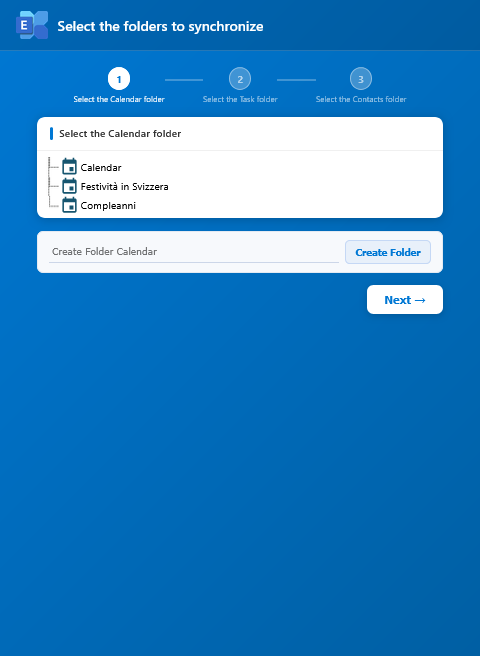
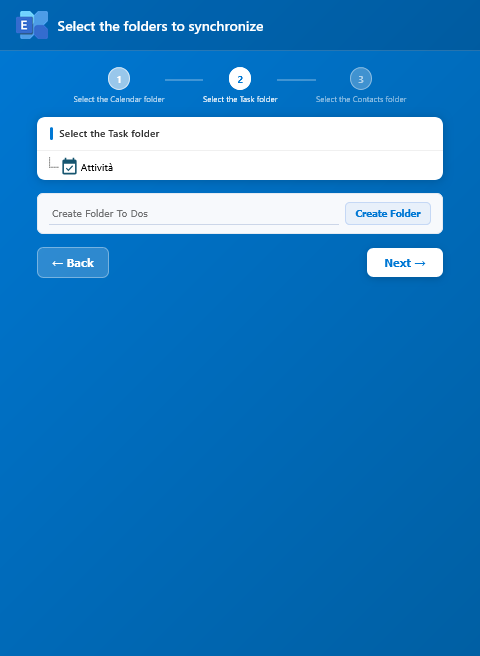
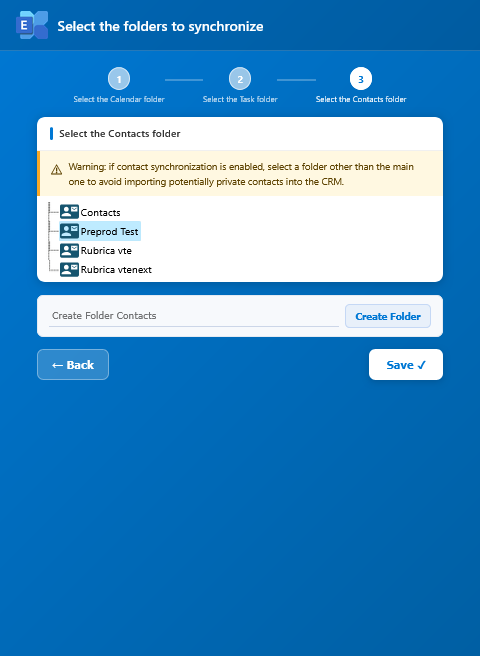
Which folder to choose
Use a dedicated, clearly named folder when vtenext data should be separated from the user's personal data. If the business process requires the default folder, select it knowingly because changes made there can be synchronized back to vtenext.
Synchronization folders can also be created directly from the folder selection interface.
Changing a folder that is already in use
Folders already used by an active user must not be changed directly. The change requires administrator involvement and must be planned in advance with your vtenext vendor or partner.
Once a folder has been used for synchronization, vtenext and Exchange have stored relationships between synchronized entities. Simply switching folders can therefore cause conflicts, duplicates or incorrect behavior for previously synchronized Contacts, Events, Tasks and other records.
The procedure must be planned and generally includes:
- identify the affected users and folders;
- agree on the intervention with the vtenext vendor or partner;
- stop or control synchronization during the intervention;
- remove the synchronization information for records previously synchronized with Exchange, according to the administrator procedure;
- select the new folders;
- restart synchronization in a controlled way;
- validate the result with test records before closing the activity.
On a production system, do not change folders or delete synchronization references without an agreed procedure. The operation must be assessed case by case to avoid lost associations, duplicates or conflicts between vtenext and Exchange.
Resource Users and Impersonation
The Is Resource and Impersonation options are intended for specific scenarios and should not be enabled for every user.
Is Resource
Use Is Resource when the vtenext profile represents an Exchange resource, such as a mailbox or calendar dedicated to a meeting room, equipment or another company resource.
For a normal person with their own mailbox, this option is generally not required.
Impersonation
Use Impersonation when the Exchange environment has been configured so that one account can operate on another user's or resource mailbox.
The required permissions must already exist in Microsoft/Exchange. Enabling the option in vtenext does not automatically grant them.
Before using these options
Confirm with the Microsoft/Exchange administrator:
- which mailbox must be synchronized;
- which account performs the connection;
- whether the required permissions are already configured;
- which folders must be used.
If no special setup exists, use the standard one-vtenext-user-to-one-Exchange-mailbox configuration.