5. Field Mapping
How to review and edit field mapping between vtenext and Exchange, and what happens after a change.
- Viewing Field Mapping
- Editing a Mapping
- What Happens When a Mapping Is Changed
- Recommended Mapping Examples
Viewing Field Mapping
Field mapping defines which Exchange field corresponds to which vtenext field.
For example, the main Exchange e-mail field can be mapped to the vtenext Contact e-mail field, the business phone to the company phone field, and so on.
Where to find it
Open Settings > Exchange Field Mapping.
The page allows you to select a module and displays, for each row, the Exchange field and the associated vtenext field.
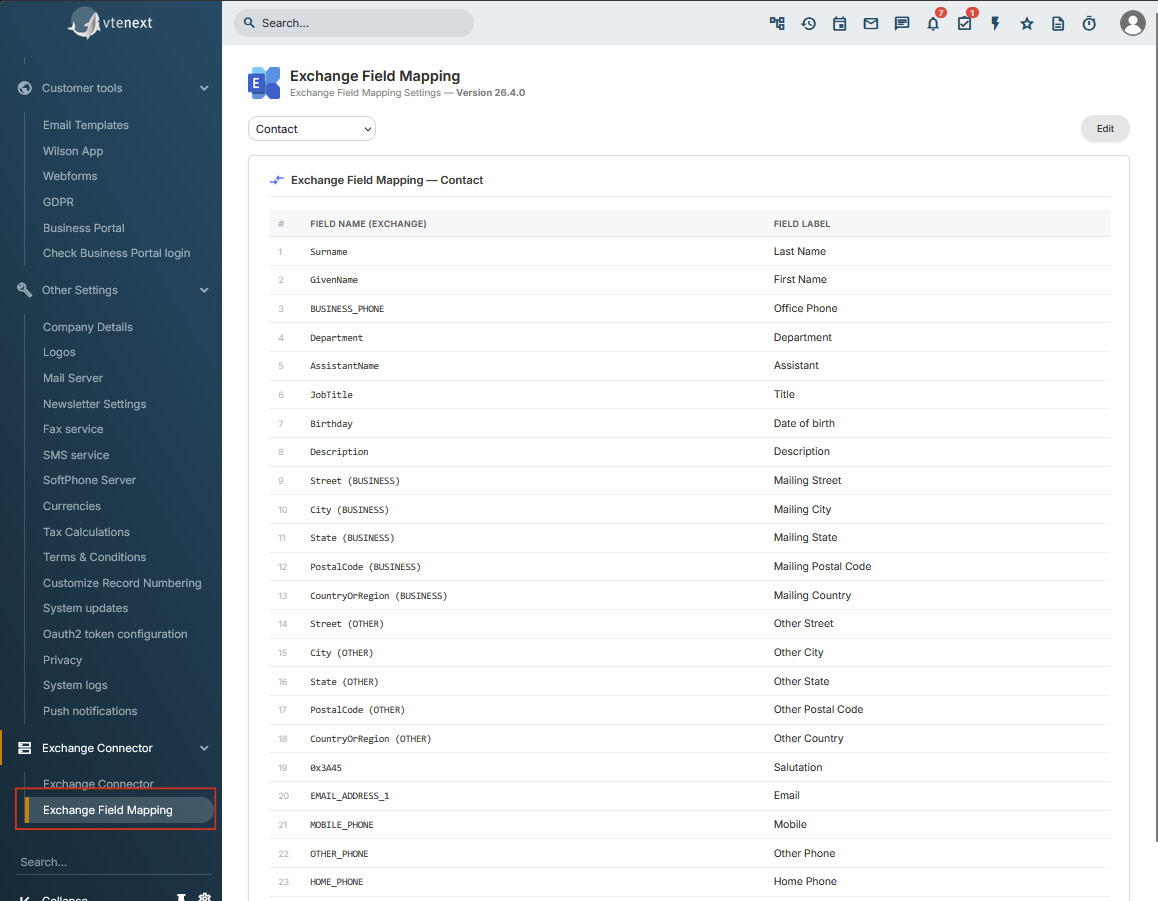
Available modules
Mappings are available for Contacts, Organizations, Calendar / Events and Tasks. In the normal 24.08 interface, custom editing is available for Contacts and Organizations; Calendar and Task mappings are visible but are not edited with the same button.
Locked fields
Some rows are mandatory or structural and are shown as locked. These fields cannot be changed from the mapping page.
Before making changes
- Take a screenshot of the current mapping.
- Check whether the module is already used by many users.
- Identify which fields are actually required.
- Read What Happens When a Mapping Is Changed.
A mapping change is not only a visual configuration change: it can trigger a new synchronization of existing records.
Editing a Mapping
Custom mapping changes are available for Contacts and Organizations.
Save a screenshot of the current mapping and review What Happens When a Mapping Is Changed.
Procedure
- Open Settings > Exchange Field Mapping.
- Select Contacts or Organizations.
- Click Edit.
- For each row, select the corresponding Exchange and vtenext fields.
- Use Add mapping when another association is needed.
- Review all rows.
- Click Save and confirm the warning.
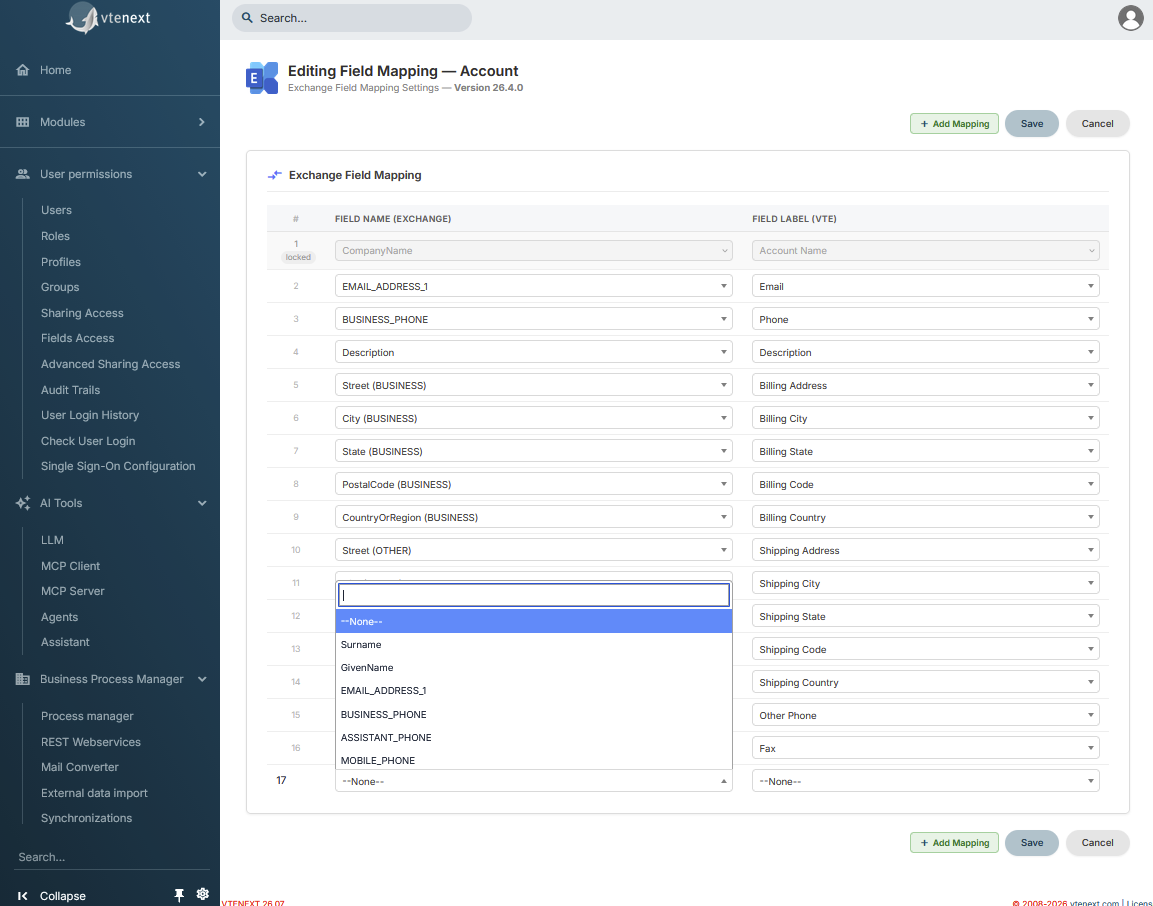
Mapping rules
Compatible field types
An Exchange field can only be associated with a compatible vtenext field type.
A field cannot be used twice
The same Exchange or vtenext field cannot be reused in two different mappings.
Main e-mail is mandatory
Contacts and Organizations must include a mapping for the Exchange Primary E-mail field (EMAIL_ADDRESS_1). Saving is blocked if this mapping is missing.
Locked fields
Rows shown as locked cannot be edited.
Using --None--
When a field pair should not be synchronized, it can be left on --None--.
Before clicking Save
Save does more than change the configuration: for Contacts and Organizations it can trigger a rebuild of Exchange synchronization. Read the next page before changing a production system.
What Happens When a Mapping Is Changed
Changing and saving the mapping for Contacts or Organizations has an important operational effect.
A mapping change must be treated as a synchronization rebuild, not as a simple configuration edit.
Effect of saving
When the module is active and a new mapping is saved, the connector does not apply it only to future records.
For enabled Exchange users, the connector can remove previously synchronized Contact or Organization copies from Exchange and publish them again from vtenext using the new mapping.
The original vtenext records are not deleted by the mapping change; the rebuild affects the synchronized Exchange copies.
What users may notice
- affected records may temporarily disappear from Exchange;
- they may then be recreated with the new mapped fields;
- resynchronization can take time when many records or users are involved;
- Exchange identifiers for recreated copies may change;
- concurrent manual edits can make it harder to determine which value is correct.
Recommended production procedure
Make the change in a controlled maintenance window, preferably after a test, and keep a screenshot of the previous mapping.
- Save a screenshot of the current mapping.
- Verify that no bulk imports or mass edits are running.
- Choose a low-activity period.
- Test the new mapping in a test environment if possible.
- Verify that the main e-mail field remains mapped correctly.
- Save the new configuration.
- Allow resynchronization to complete.
- Check sample records in vtenext and Exchange.
If only one field is changed
Even a small mapping change is saved as a new module configuration. Do not assume that only that single field will be updated on existing records.
If something is wrong after the change
Wait for resynchronization to complete and verify the saved configuration, user connections and a few sample records before making another change.
Recommended Mapping Examples
The initial configuration already includes useful field associations. Start from these defaults and customize only what is actually required by the business process.
Contact example
| Exchange | vtenext |
|---|---|
| Last name | Last name |
| First name | First name |
| Primary e-mail | |
| Business phone | Phone |
| Mobile phone | Mobile |
| Home phone | Home phone |
| Business fax | Fax |
| Department | Department |
| Job title | Title |
| Birthday | Date of birth |
| Business address | Primary shipping address |
| Other address | Other address |
The Primary e-mail field must remain mapped to a valid vtenext e-mail field.
Organization example
| Exchange | vtenext |
|---|---|
| Company name | Organization name |
| Primary e-mail | |
| Business phone | Phone |
| Description | Description |
| Business address | Billing address |
| Other address | Shipping address |
Organization name is a structural association and should not be treated like a normal free mapping row.
When to add a custom field
Add a mapping only when the value is actually used, the vtenext field type is compatible, the information must be visible in Exchange and it is clear which system is the authoritative source for the value.
Avoid excessive mappings
Synchronizing many unused fields makes troubleshooting harder. A smaller, clear mapping based on real business needs is usually preferable.