6. Daily Use of the Connector
How synchronization behaves during normal use and what to expect for events, tasks, contacts and organizations.
How Synchronization Works
After configuration, Exchange Connector works automatically in the background and can keep data synchronized in both directions.
Two-way synchronization
When a function is enabled, the connector can process changes from vtenext to Exchange and from Exchange to vtenext. Actual behavior depends on the enabled module, selected folder and configured mapping.
How inbound changes are received
The mechanism differs between Exchange Server/EWS and Microsoft 365/Graph. Network requirements and the difference between EWS streaming and Graph push notifications are described in Opening and Configuring Exchange Connector.
For provider-specific details, see Configuring Microsoft 365 or Configuring Exchange Server.
Synchronization is not always immediate
Changes are normally processed quickly, but a few minutes of delay can occur between the two systems. The connector also runs periodic checks to recover changes that were not processed on the first attempt.
If a change does not appear immediately, wait for the normal synchronization cycle before repeating the same operation.
First connection
After connecting a new user or after a migration, the first alignment can take longer. Duration depends on the number of records and users, recurring events and connection speed.
Avoid mass changes during initial alignment
During the first synchronization, avoid bulk imports, mapping changes, mass assignee changes and large Exchange folder moves. First verify that normal synchronization is stable.
How to test
- Create an easily identifiable test record in vtenext.
- Verify that it appears in Exchange.
- Modify it in Exchange.
- Verify that the change returns to vtenext.
This is more reliable than testing with an old record whose previous history is unknown.
Events, Recurrences and Online Meetings
Calendar synchronization keeps events aligned between vtenext and Exchange when Event synchronization is enabled.
Creating and editing events
An event created or edited in vtenext is sent to the user's Exchange calendar. Changes made in Exchange can also be synchronized back to vtenext.
For testing, use clearly identifiable events, for example TEST EXCHANGE - DO NOT USE.
Deletions
The connector manages deletions, but test this behavior first with a dedicated test event. Do not use a real appointment as the first deletion test.
Recurring events
The connector also handles recurring events. For series without an end date, vtenext progressively maintains the future occurrences required for synchronization.
After migration or a major configuration change, test at least a weekly series, a change to the series and, if used, a change to a single occurrence.
Microsoft 365 and Microsoft Teams meetings
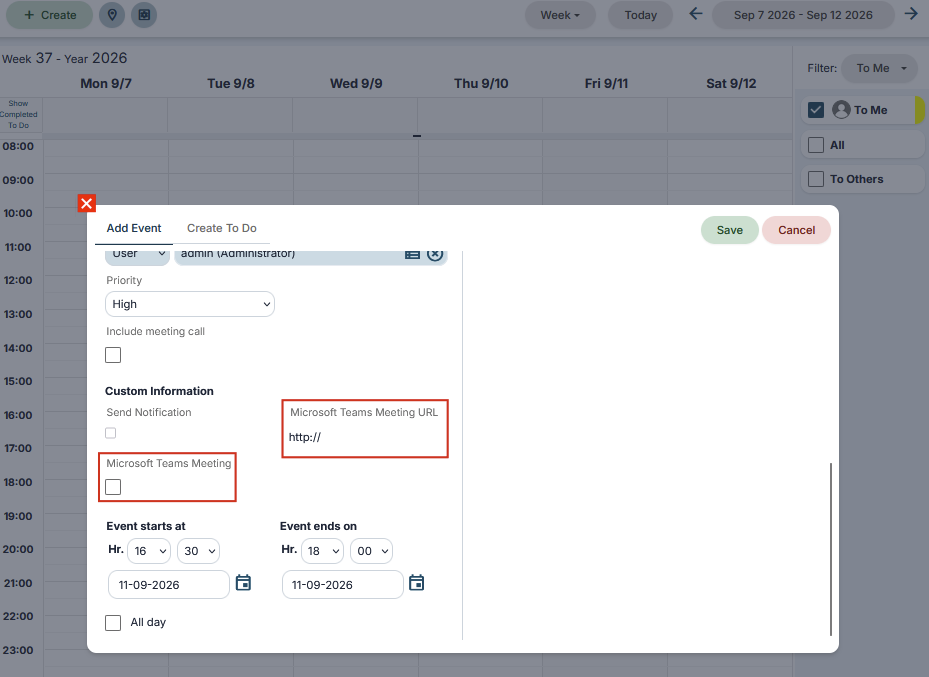
In the new Exchange Connector versions, when Microsoft 365 / Exchange Online is used, an event can be created and managed as a Microsoft Teams online meeting and the related Teams link can be used directly from the synchronized event.
This feature is available with Microsoft 365 through Microsoft Graph. It is not available with on-premises Exchange Server through EWS.
When Teams is used, verify that the event is created correctly, that the Teams link is generated and available where expected, and that editing the event does not remove the online meeting link.
If an event appears duplicated
Before deleting one of the events, check whether the user was recently reconnected, synchronization folders were changed, an EWS-to-Graph migration just took place, or bulk imports/changes were performed. Do not keep creating additional test events until the cause is understood.
Tasks, Contacts and Organizations
In addition to Calendar, Exchange Connector can synchronize Tasks, Contacts and Organizations when the corresponding options are enabled.
Tasks
Tasks are synchronized with the folder selected by the user. With Microsoft 365, this corresponds to a Microsoft To Do list. During testing, verify subject, due date, status and changes in both directions.
Contacts and Organizations
Transferred fields depend on the configured mapping. See Viewing Field Mapping and Recommended Mapping Examples.
If a field is not included in the mapping, it should not be assumed to synchronize automatically.
Assignee and synchronization user
For Contacts and Organizations, the administrator can select a specific user or use same as entity. If a record does not synchronize to the expected mailbox, check this setting and the record assignee.
After a mapping change
Saving a new mapping can affect records that have already been synchronized. Before making a production change, read What Happens When a Mapping Is Changed.