# Connecting a Microsoft 365 User
With Microsoft 365, each user connects their own account directly from the vtenext user profile.
## Procedure
1. Open the user profile.
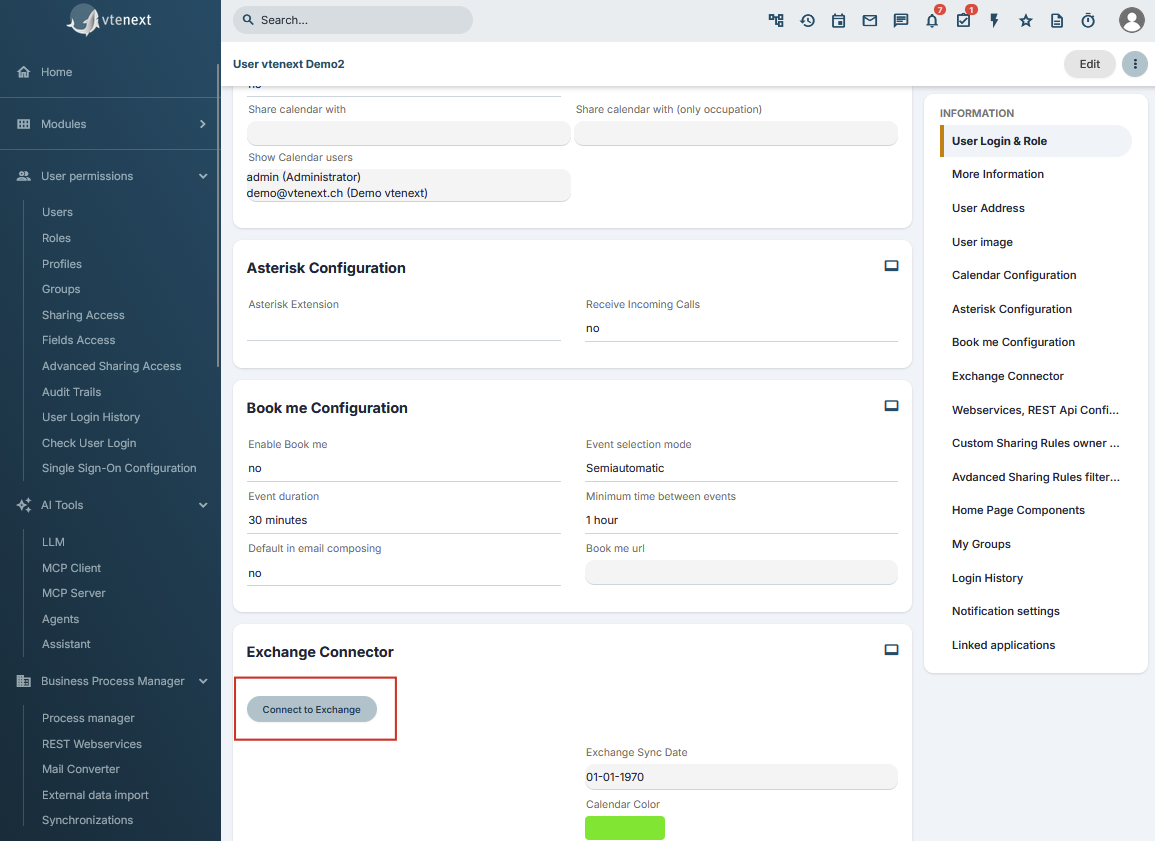
2. Locate the Exchange section.
3. Click **Connect**.
4. Sign in with the correct Microsoft account.
5. Confirm the requested authorization.
6. Return to vtenext.
7. Select synchronization folders if requested.
8. Save.
[](https://manual.vtenext.ch/uploads/images/gallery/2026-09/w7hmcQMla5LeeFqV-immagine.png)
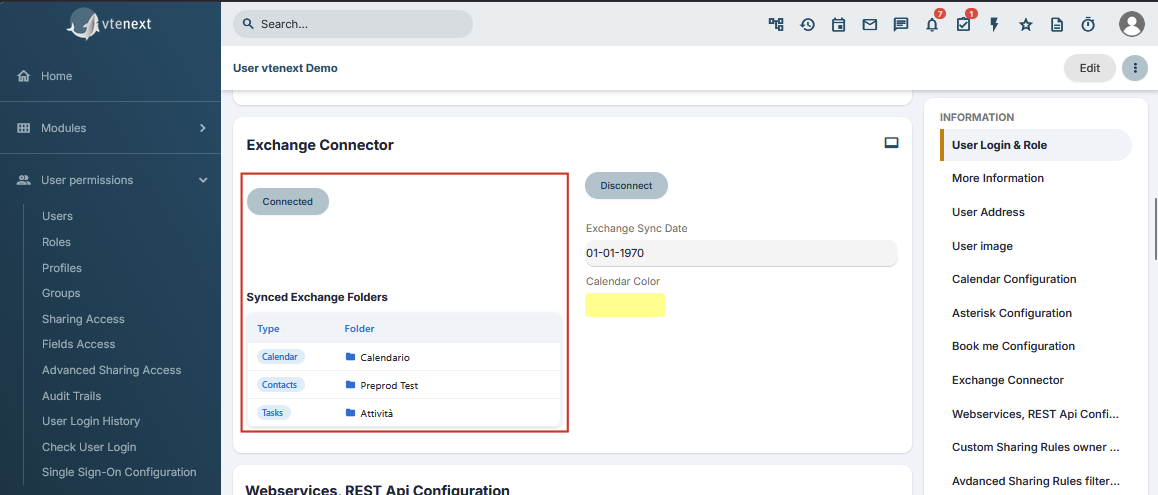
When the connection is complete and folders are configured, the profile shows **Connected**.
[](https://manual.vtenext.ch/uploads/images/gallery/2026-09/8BYTLpEnw58JZcqV-immagine.png)
## Which account to use
Unless impersonation is configured, the e-mail address in the vtenext user profile must match the Microsoft account being connected.
**Warning**
Do not use the same e-mail address for two different vtenext users. This can cause synchronization issues and problems when handling calendar invitations, especially with external users.
## Warning when Microsoft access expires
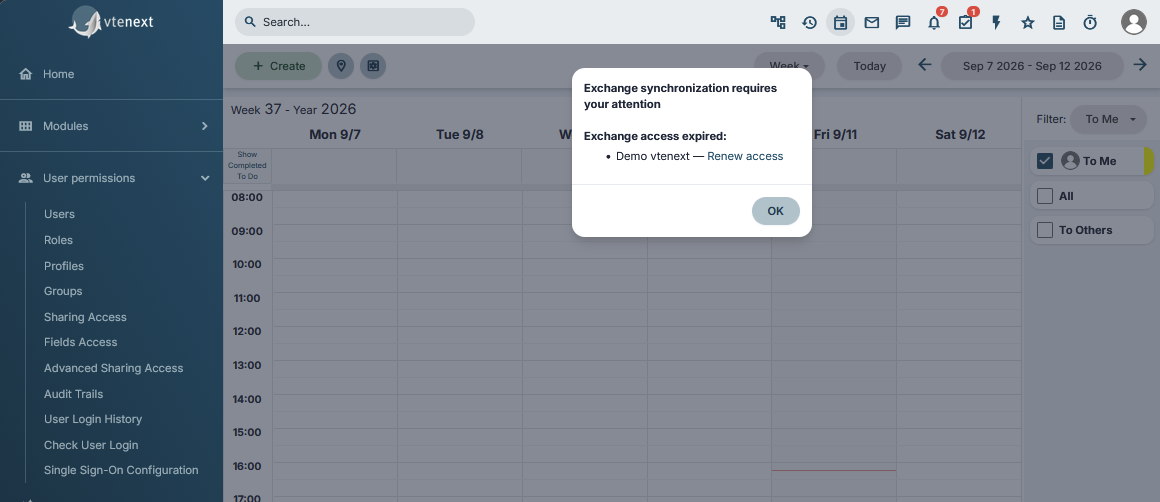
In the new Exchange Connector versions, vtenext checks Microsoft 365 authorization status. If one or more accounts are disconnected or their access has expired, a popup appears in the **vtenext Calendar**.
**Exchange synchronization requires your attention**
The warning lists accounts with **Exchange access expired** and provides a **Renew access** action. The user must renew the Microsoft authorization to restore normal synchronization.
1. Identify the account shown as **Exchange access expired**.
2. Click **Renew access**.
3. Complete Microsoft sign-in and authorization again.
4. Return to vtenext and verify that the warning disappears.
5. Run a synchronization test if the account remained disconnected for a significant period.
[](https://manual.vtenext.ch/uploads/images/gallery/2026-09/W0IpwBBS5Ae9YsoU-immagine.png)
## If Connect or Renew access still fails
Verify that Microsoft sign-in completes all the way back to vtenext, that the vtenext session has not expired and that Office365 configuration is correct. See [User Cannot Connect](https://manual.vtenext.ch/books/exchange-connector-vtenext-Hfx/page/user-cannot-connect).
## When to reconnect
Use **Connect** or **Renew access** when Microsoft authorization expires or is revoked, after an Exchange configuration reset, or when requested by support. If the Proxy/Custom App mode changes, follow [Changing Exchange Type or Connection Method](https://manual.vtenext.ch/books/exchange-connector-vtenext-Hfx/page/changing-exchange-type-or-connection-method).