# Editing a Mapping
Custom mapping changes are available for **Contacts** and **Organizations**.
**Before you begin**
Save a screenshot of the current mapping and review [What Happens When a Mapping Is Changed](https://manual.vtenext.ch/books/exchange-connector-vtenext-Hfx/page/what-happens-when-a-mapping-is-changed).
## Procedure
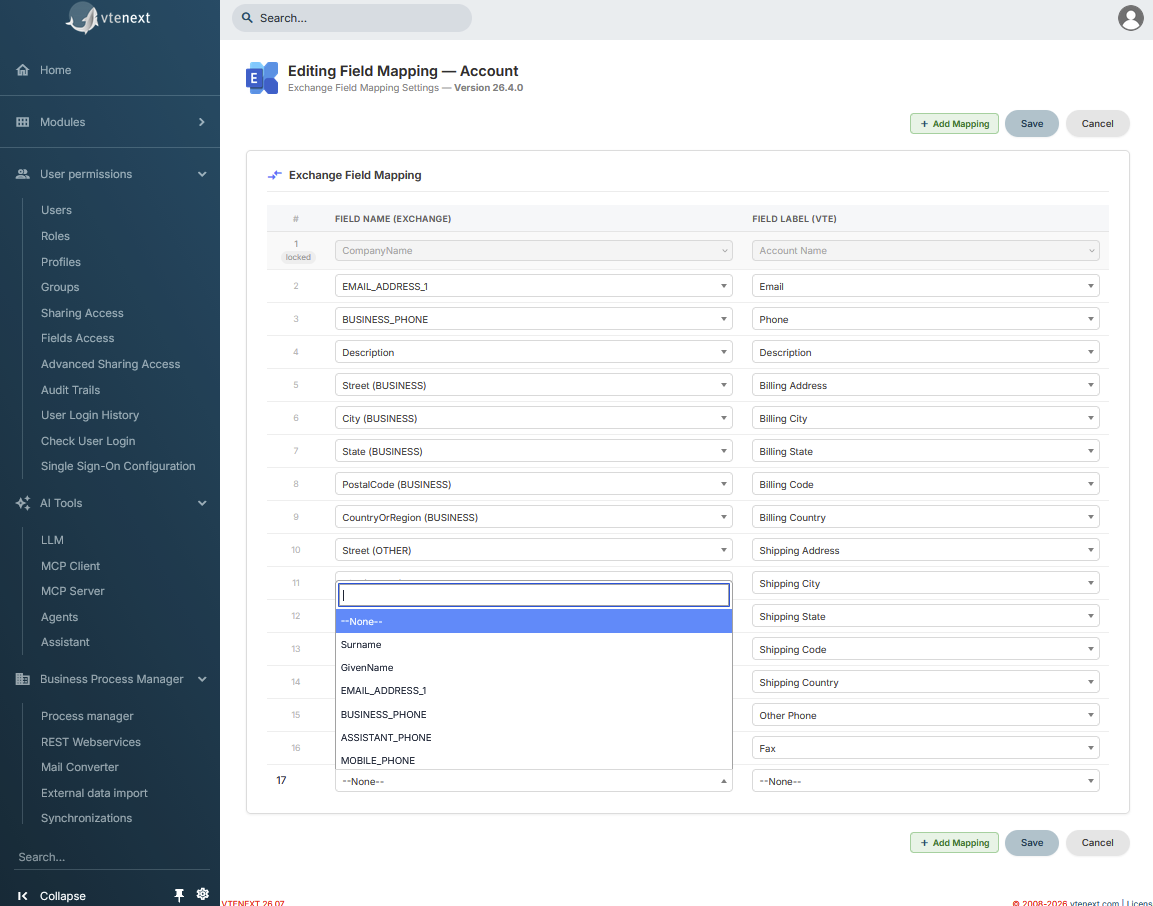
1. Open **Settings > Exchange Field Mapping**.
2. Select **Contacts** or **Organizations**.
3. Click **Edit**.
4. For each row, select the corresponding Exchange and vtenext fields.
5. Use **Add mapping** when another association is needed.
6. Review all rows.
7. Click **Save** and confirm the warning.
[](https://manual.vtenext.ch/uploads/images/gallery/2026-09/eQadauIoHiKeg6AM-immagine.png)
## Mapping rules
### Compatible field types
An Exchange field can only be associated with a compatible vtenext field type.
### A field cannot be used twice
The same Exchange or vtenext field cannot be reused in two different mappings.
### Main e-mail is mandatory
Contacts and Organizations must include a mapping for the Exchange **Primary E-mail** field (`EMAIL_ADDRESS_1`). Saving is blocked if this mapping is missing.
### Locked fields
Rows shown as locked cannot be edited.
## Using --None--
When a field pair should not be synchronized, it can be left on **--None--**.
## Before clicking Save
**Operation with impact on synchronized data**
**Save** does more than change the configuration: for Contacts and Organizations it can trigger a rebuild of Exchange synchronization. Read the next page before changing a production system.