# Selecting or Changing Synchronization Folders
Each user uses a specific folder for each synchronized data type.
Normally, users select:
- a **Calendar** folder;
- a **Tasks** folder;
- a **Contacts** folder.
## Microsoft 365
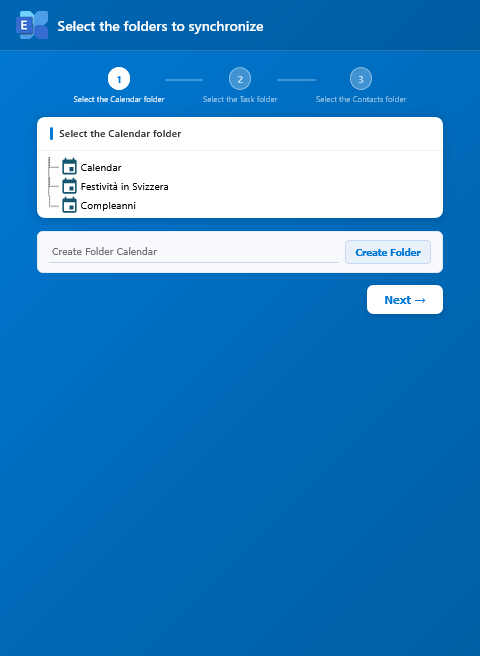
After connecting with **Connect**, vtenext shows the available folders in the Microsoft account.
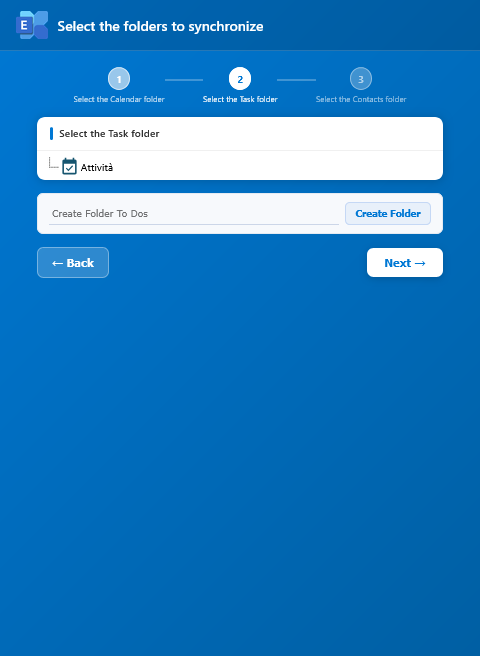
For Tasks, available Microsoft To Do lists are shown. The **Flagged Emails** list is not used as a synchronization folder. For Contacts, the main Contacts folder is also available.
## Exchange Server
With Exchange Server, vtenext can show both default folders and custom mailbox folders.
[](https://manual.vtenext.ch/uploads/images/gallery/2026-09/JI9ZgEN2SHsz83RB-immagine.png)
[](https://manual.vtenext.ch/uploads/images/gallery/2026-09/uGnqHVj6aqzuONRV-immagine.png)
[](https://manual.vtenext.ch/uploads/images/gallery/2026-09/inuA8elOHRxxdwWS-immagine.png)
## Which folder to choose
Use a dedicated, clearly named folder when vtenext data should be separated from the user's personal data. If the business process requires the default folder, select it knowingly because changes made there can be synchronized back to vtenext.
## Changing a folder that is already in use
**Warning — delicate procedure**
Folders already used by an active user **must not be changed directly**. The change requires administrator involvement and must be planned in advance with your vtenext vendor or partner.
Once a folder has been used for synchronization, vtenext and Exchange have stored relationships between synchronized entities. Simply switching folders can therefore cause conflicts, duplicates or incorrect behavior for previously synchronized Contacts, Events, Tasks and other records.
The procedure must be planned and generally includes:
1. identify the affected users and folders;
2. agree on the intervention with the vtenext vendor or partner;
3. stop or control synchronization during the intervention;
4. **remove the synchronization information for records previously synchronized with Exchange**, according to the administrator procedure;
5. select the new folders;
6. restart synchronization in a controlled way;
7. validate the result with test records before closing the activity.
**Do not perform this change independently**
On a production system, do not change folders or delete synchronization references without an agreed procedure. The operation must be assessed case by case to avoid lost associations, duplicates or conflicts between vtenext and Exchange.