Popup Configuration
Creation and management of TeamsPhone Plugin popup configurations: displayed fields, quick actions, and role assignment.
Where to Find It
Popup configuration management is available in vtenext Settings. Search for Teams Popup Configurations in the Settings search bar.
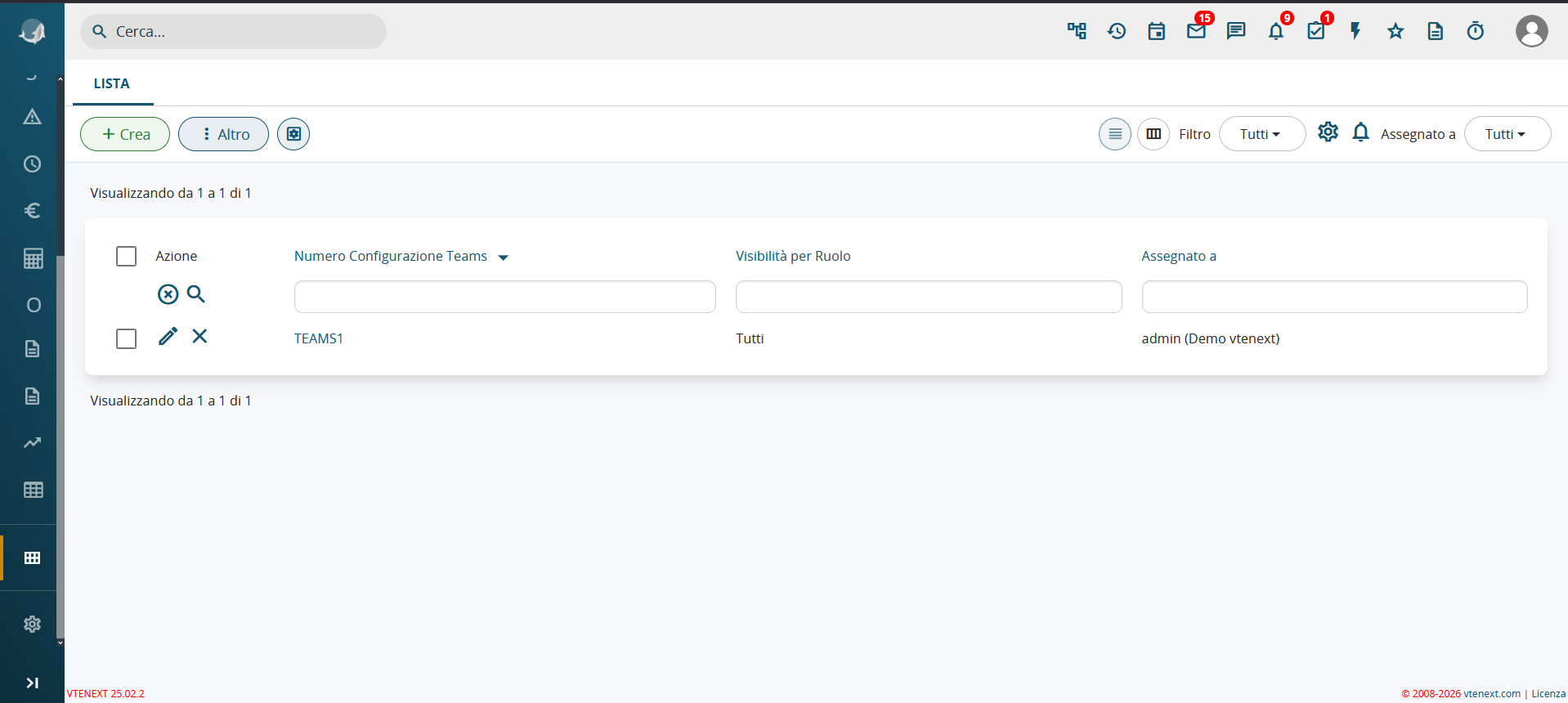
The list shows the configuration number, role visibility, and assigned user. From this page, administrators can create, edit, or delete configurations. Each configuration is independent and can be designed for a specific role.
Create a New Configuration
Click + Create on the Popup Configurations page. The form contains four sections:
- Teams Popup Configuration Information: automatically generated configuration number, assigned user, active status, and one or more visible roles.
- Teams Popup Field Configuration: CRM modules and fields displayed in the popup.
- Teams Mention Configuration: secondary searches in linked modules.
- Descriptive Information: an internal description that is not shown to operators.
Rows can be added, reordered, or removed. Save the configuration with Save or leave without saving with Cancel.
Quick-action buttons cannot be configured during initial creation. They become available on the configuration detail page after the record has been saved.
Configuration Detail Page
Open an existing configuration to view its detail page.

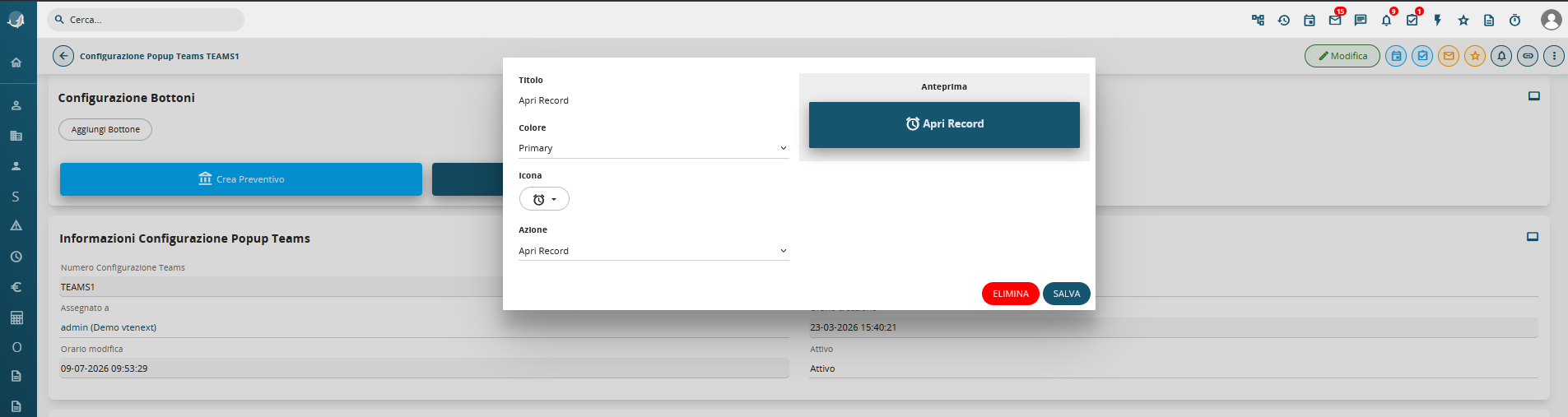
The page also summarises role visibility, active status, assigned user, popup fields, linked-module mentions, and the internal description.
Edit a Configuration
Open the configuration detail page and click Edit.
The edit form contains the same sections as the creation form, pre-filled with the current values. You can change the assigned user, active status, role visibility, popup modules and fields, linked-module mentions, and internal description. The configuration number cannot be changed.
Use Save to confirm the changes or Cancel to return without saving.