
Connecting a Microsoft 365 User
With Microsoft 365, each user connects their own account directly from the vtenext user profile.
Procedure
- Open the user profile.
- Locate the Exchange section.
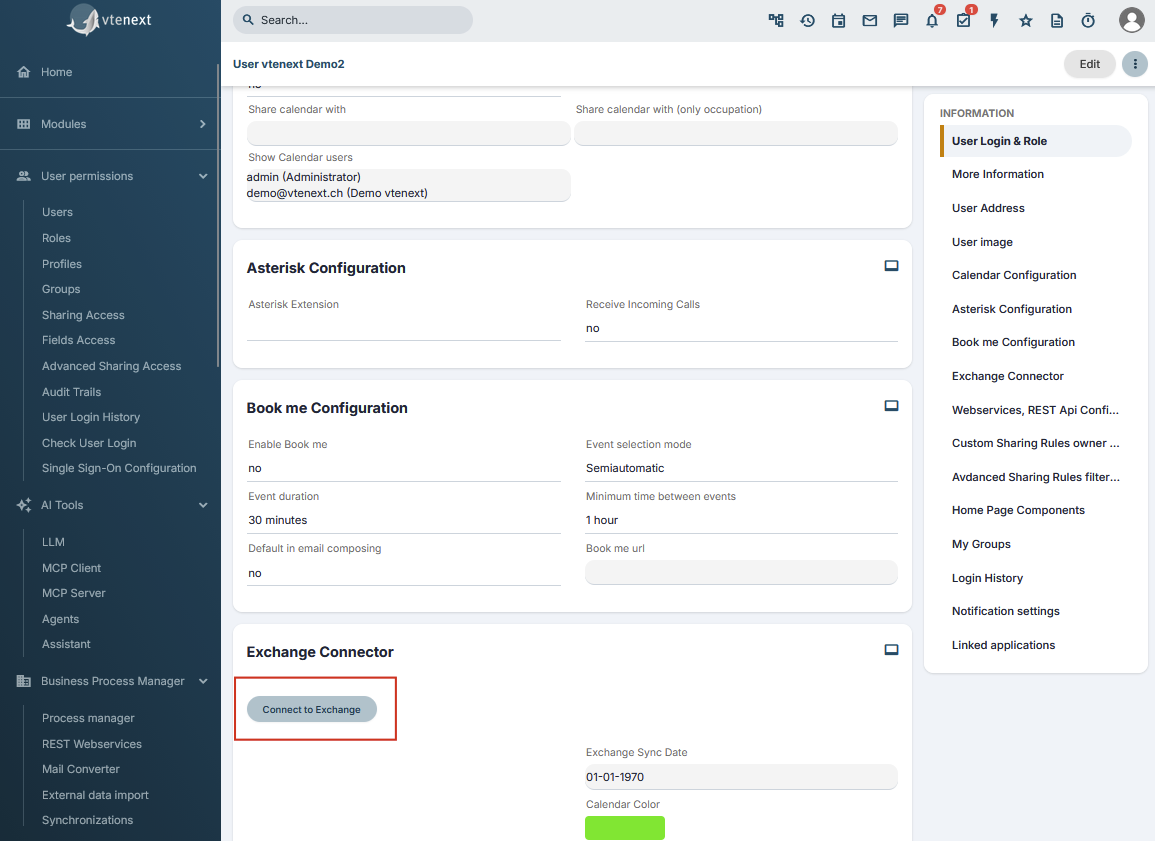
- Click Connect.
- Sign in with the correct Microsoft account.
- Confirm the requested authorization.
- Return to vtenext.
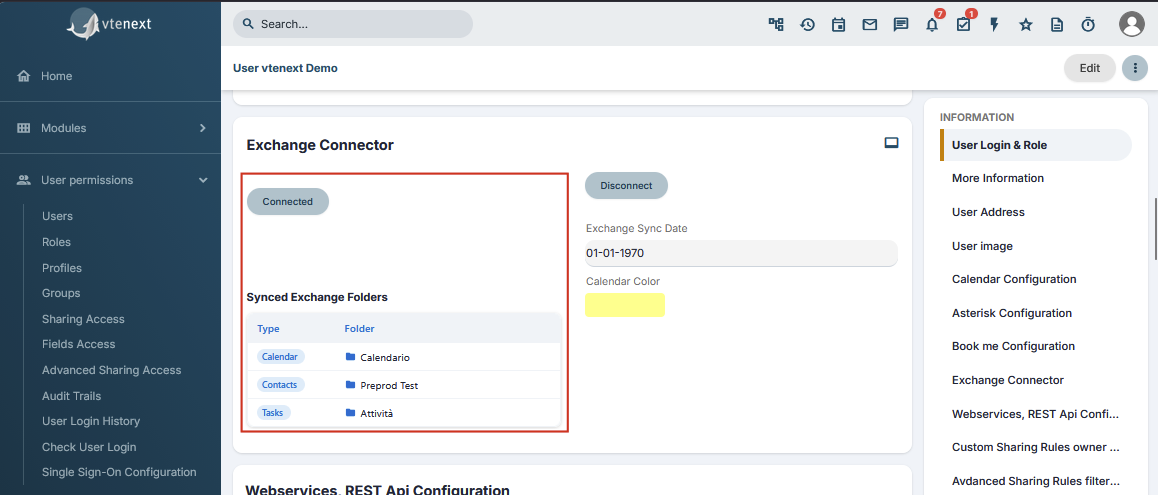
- Select synchronization folders if requested.
- Save.
When the connection is complete and folders are configured, the profile shows Connected.
Which account to use
Unless impersonation is configured, the e-mail address in the vtenext user profile must match the Microsoft account being connected.
Do not use the same e-mail address for two different vtenext users. This can cause synchronization issues and problems when handling calendar invitations, especially with external users.
Warning when Microsoft access expires
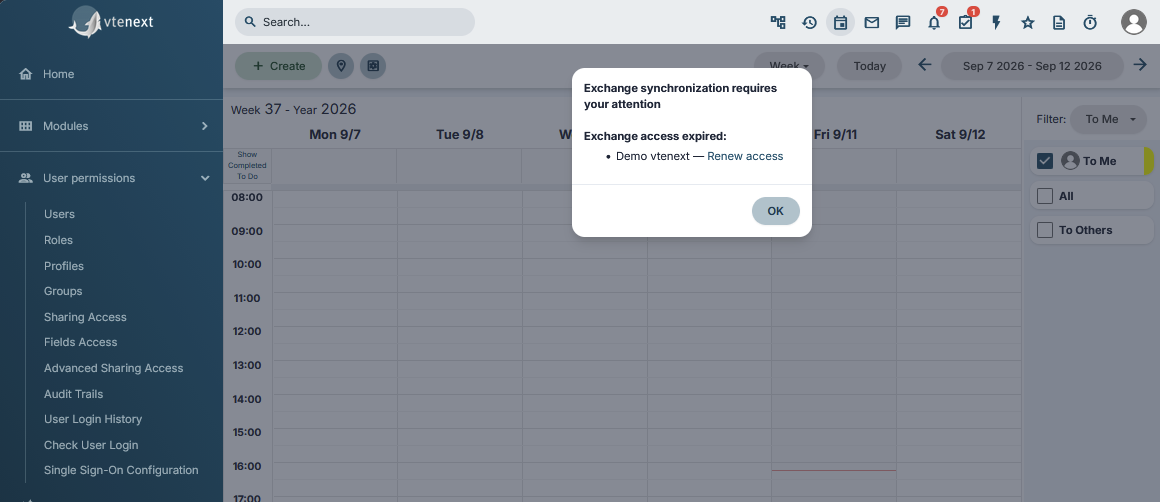
In the new Exchange Connector versions, vtenext checks Microsoft 365 authorization status. If one or more accounts are disconnected or their access has expired, a popup appears in the vtenext Calendar.
The warning lists accounts with Exchange access expired and provides a Renew access action. The user must renew the Microsoft authorization to restore normal synchronization.
- Identify the account shown as Exchange access expired.
- Click Renew access.
- Complete Microsoft sign-in and authorization again.
- Return to vtenext and verify that the warning disappears.
- Run a synchronization test if the account remained disconnected for a significant period.
If Connect or Renew access still fails
Verify that Microsoft sign-in completes all the way back to vtenext, that the vtenext session has not expired and that Office365 configuration is correct. See User Cannot Connect.
When to reconnect
Use Connect or Renew access when Microsoft authorization expires or is revoked, after an Exchange configuration reset, or when requested by support. If the Proxy/Custom App mode changes, follow Changing Exchange Type or Connection Method.