
Existing Installation with License
When the plugin is already installed and a license is present (whether valid or expired), the interface provides advanced license management options through dedicated buttons available on the homepage.

“Update License” Button
-
Location: Visible in the top bar of the homepage (Version 1.0)
-
Function: Allows the user to enter a new license key or update the existing one
-
Use case: Required when the current license has expired or when switching to a different license
License Update Window
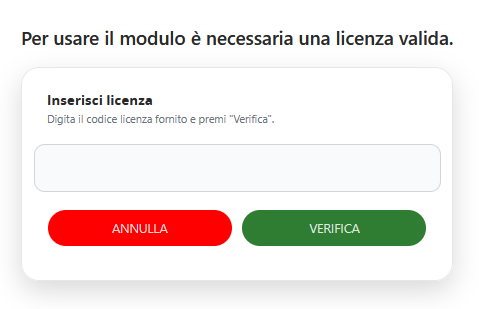
When the user clicks Update License, the system displays a modal window with the following elements:
-
Information message: “A valid license is required to use this module”
-
Insert License section: Dedicated area for entering the new license key
-
Text field: For entering the provided license code
-
Instructions: “Enter the provided license key and click ‘Verify’”
-
CANCEL button: Closes the window without making changes
-
VERIFY button: Validates the newly entered license key
The system automatically detects the license status and, in case of an error or expired license, displays an error message.