
Migrating from 20.04.xx to 24.08 or 26.04
Moving from 20.04.xx to 24.08 or 26.04 requires a special procedure because Exchange Connector must be converted from the legacy installation into a registered vtenext module.
1. Back up the instance
Before starting, create a full backup of the vtenext database and files and record users, selected folders and any custom mappings.
2. Upgrade vtenext to the target generation
Upgrade the vtenext instance to the required target generation and use the Exchange Connector package built for the same vtenext generation.
3. Register Exchange Connector as a vtenext module
On installations coming from 20.04.xx, run the Exchange module registration script once:
register_exchange_module.php
Copy the script to ../plugins/script/ and run it through the browser, for example https://mycrm.example/plugins/script/register_exchange_module.php.
Remove
register_exchange_module.php immediately after execution. The script must be run only once.The script registers the existing connector as a vtenext vtlib module without recreating the existing Exchange tables, cron entries, settings or fields.
Open Module Manager, section Custom, and verify that Exchange Connector is listed.
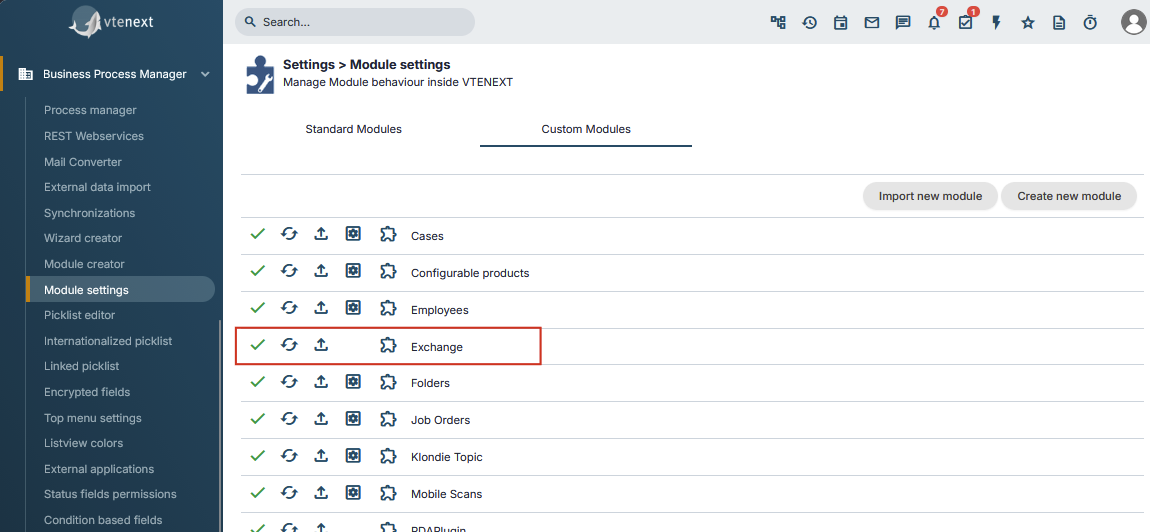
If Exchange Connector appears correctly in Module Manager, module registration has completed successfully.
4. Upgrade the module to the target version
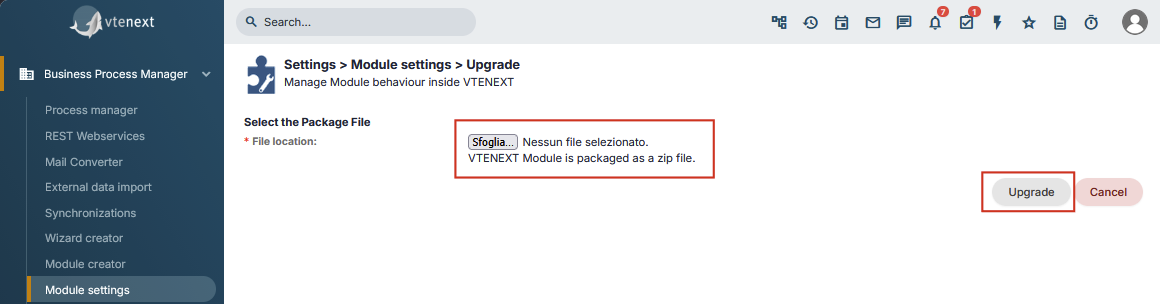
Install or upgrade Exchange Connector using the ZIP package for the target version. From this point onward, the connector is managed as a standard vtenext module.

5. If Microsoft 365 is used
- Open Settings > Exchange Connector.
- Verify that the server type is Office365.
- Choose vtenext Proxy or Custom Microsoft App.
- If a custom app is used, enter its configuration again.
- Save.
- Check users and reconnect them with Connect if required.
- Verify selected folders.
- Run a synchronization test.
During migration to the new structure, Office365 is moved to the vtenext Proxy mode. If the customer wants to use a custom Microsoft App, Tenant ID, Client ID and Client Secret must be configured again after migration.
6. If Exchange Server is used
For on-premises Exchange Server, the structural migration is the same, while communication continues to use EWS. Check Exchange version, Mail Server, user credentials, selected folders and synchronization in both directions.
7. Final check
The migration is complete when the module is correctly listed in Module Manager, the expected version is installed, users and folders are correct, and synchronization tests in both directions succeed.